
Monitoring the posting history for Sales Order Invoices and Free Text Invoices is now much easier. This improvement comes with a new Preview feature in D365FO 10.0.45. The feature, called Customer invoice logging framework for sales order and free text invoice history tracking, is available through Feature management. Customers can enable it and test its capabilities.
Preview features are included throughout each new D365FO release, from Preview to GA versions. They must be enabled in the Feature management workspace before use. Some Preview features may be scrapped and never reach GA. You can learn more in my article Feature Management in D365FO
As the name says, users can now see logs for Sales Order Invoice and Free Text Invoice postings. Users can see the entire log, such as how many invoices were posted, and more importantly, how many failed. This helps especially in Batch scenarios where log messages may lack enough details to detect the cause of failure.
Let’s see what we need to do to enable the feature and then see what it looks like in action.
Enable the feature in Feature management
At the time of writing this article, First release version of 10.0.45 (10.0.2345.35) is available to all customers, meaning that Microsoft has started to roll out this release version to First release customers. Of course, as a first precondition, you need to run a 10.0.45 version of D365FO. When you are on 10.0.45, navigate to the Feature management and Enable the Preview feature called (Preview) Customer invoice logging framework for sales order and FTI history tracking

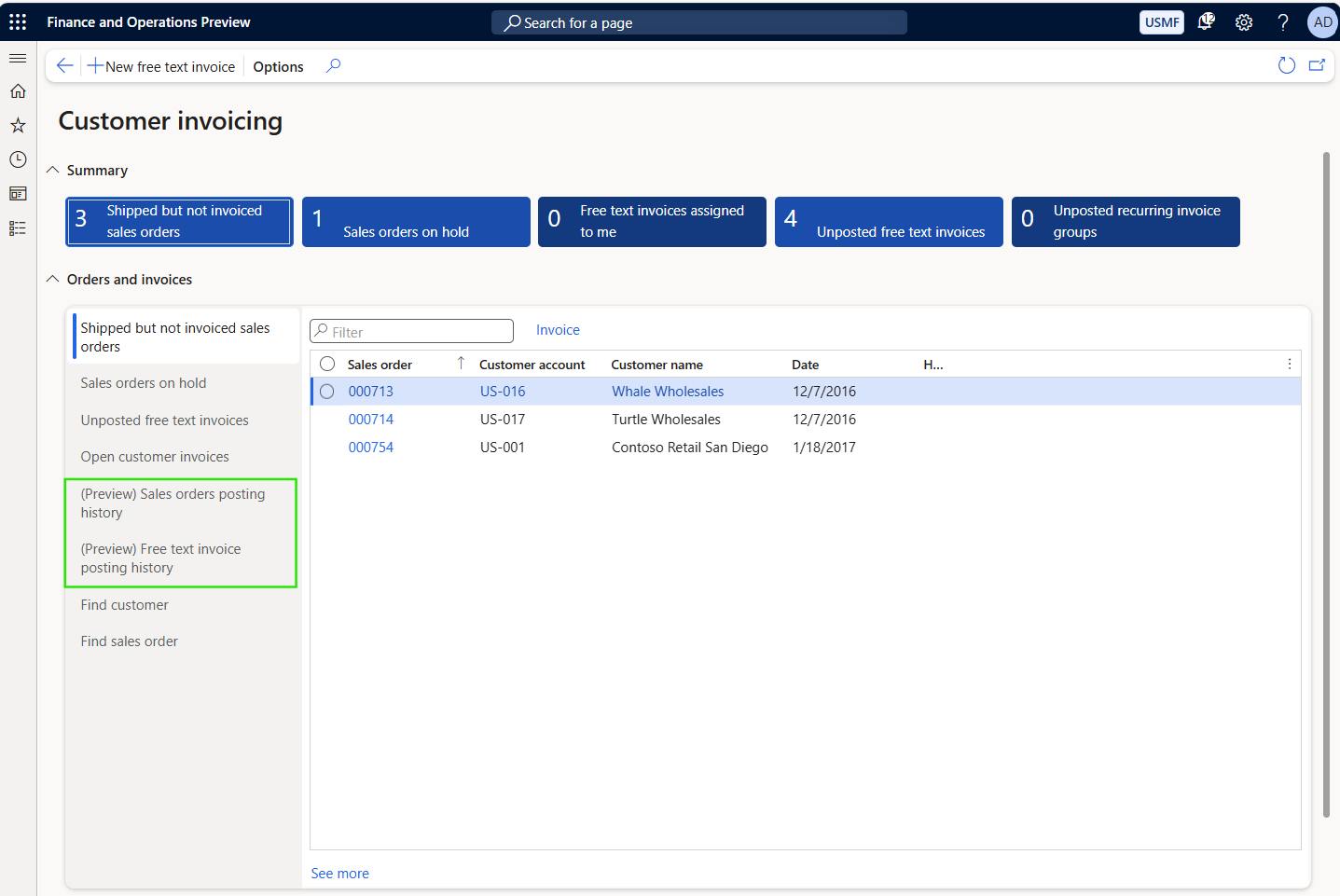
After enabling the feature, two new menu items will appear in the Customer invoicing Workspace, where users will be able to see new additions to the form.
Customer Invoicing Workspace
Tracked history of the Sales order invoice and Free Text Invoice postings is visible in two new tabs on the left sidebar under Orders and Invoices FastTab. Users can choose between:
- Sales orders posting history and
- Free text invoice posting history
Both options are currently marked as Preview.
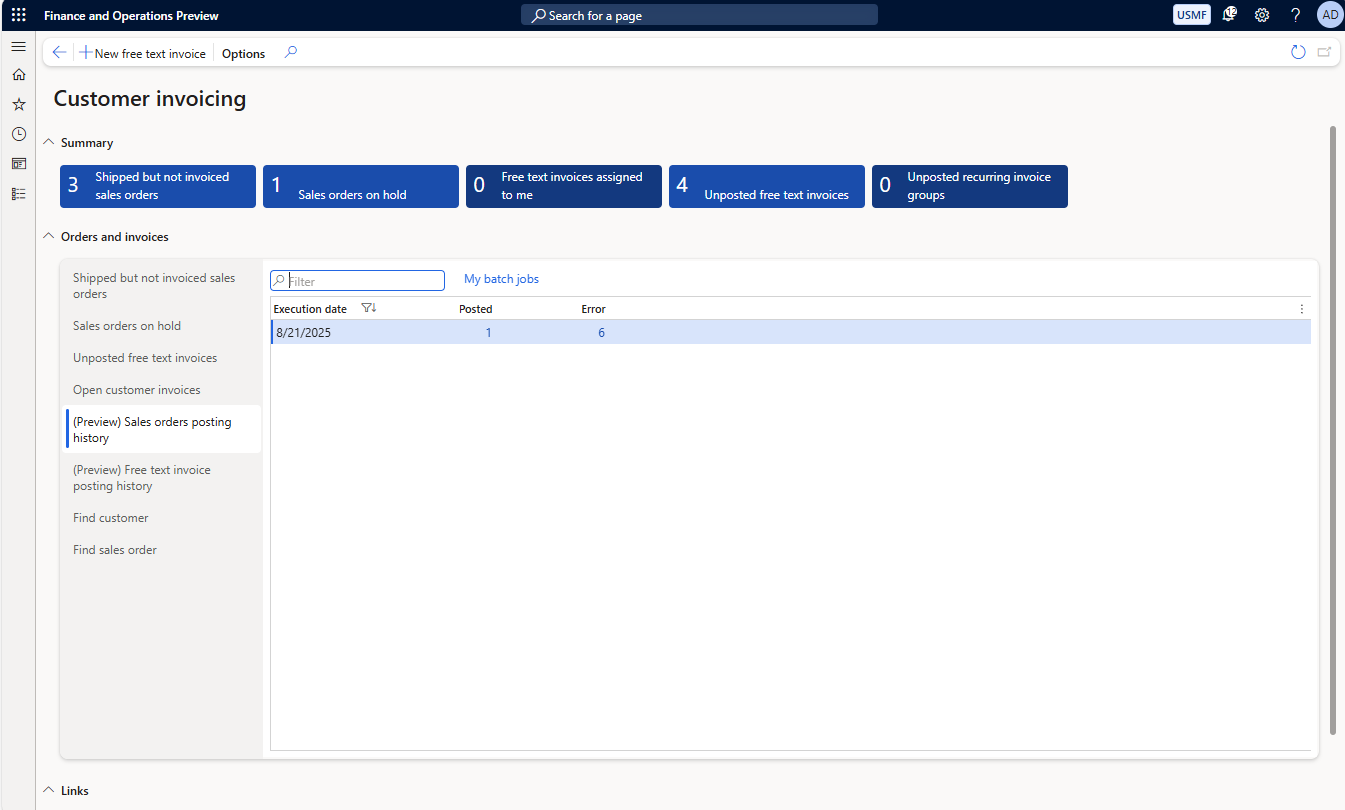
Each option will show you the tracking history of invoice postings grouped by the date when the postings occurred. All postings for the single day will be counted in one row and will be available to view by clicking on the number of posted or errored invoices.
The form itself provides essential information:
- Execution date
- Posted
- Error
Only Sales order invoices and Free Text invoices posted after the feature is enabled will be shown in the history log.
In the toolbar, there is also a filter field where you can filter any of these three column values. Right next to it is a button that navigates to My batch jobs clearly positioning this feature as future indinspensable tool for Batch posting scenarios.
When users click on either a number in the Posted or Error columns, a new form opens with the following columns, which will hold information for each Sales order or Free Text invoice:
- Sales order
- Customer account
- Currency
- Execution Date/Time
- Batch
- Summary
- Line count
The Summary column will show Yes when multiple Sales orders are posted as a single invoice through the Summary order feature.
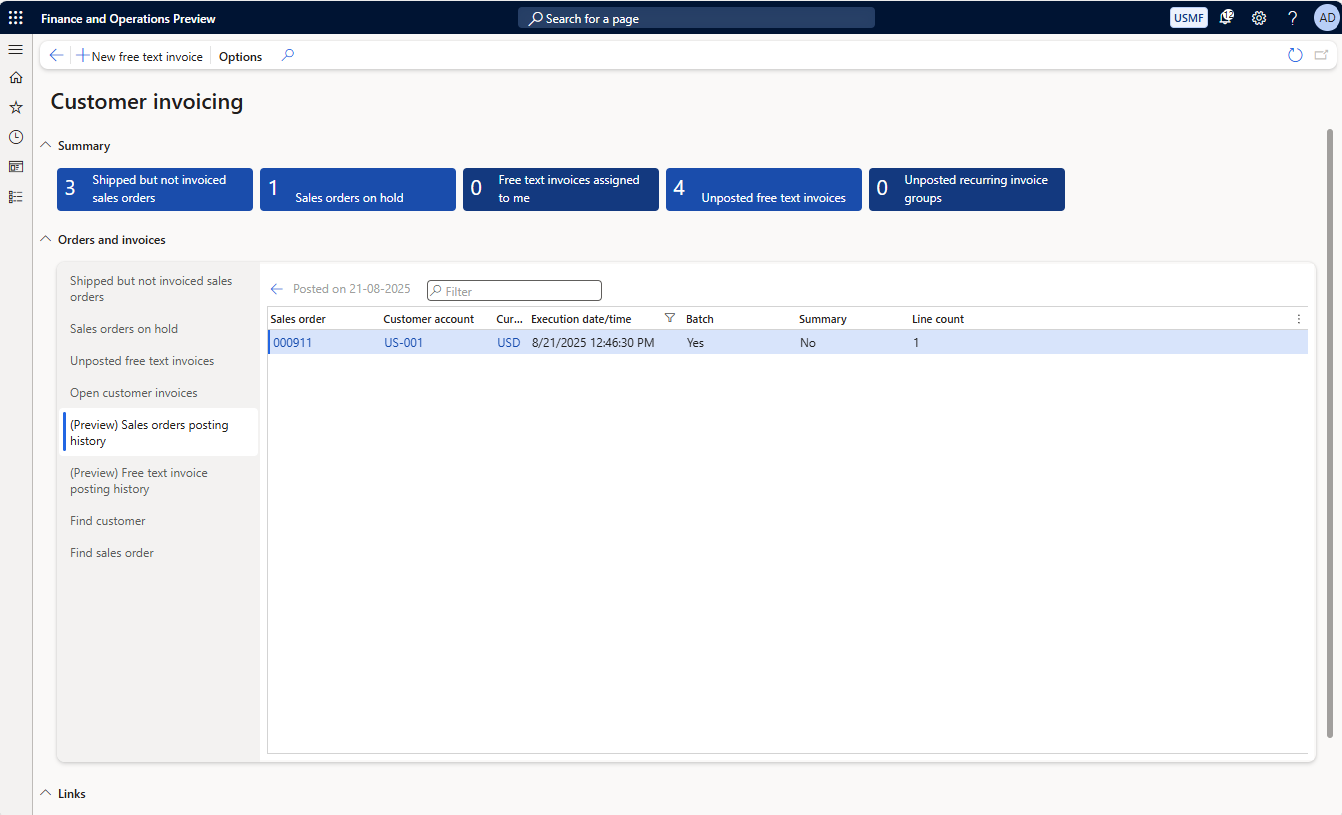
Even though a primary use case will be postings using Batch processing, the history tracking also logs interactive postings, in which case a value in the Batch column will be No.
The two forms for Posted and Errored invoices differ only by the toolbar item when the errored invoices are shown - Error details

Error details will open a right-hand sidebar where users can inspect actual errors for each invoice. Message content is something that you would see in the Error log when encountering an error during interactive posting. Besides the Message, users can see the most relevant data for the attempted Sales order invoice posting.

Conclusion
This feature is potentially a life-saver for everyone who uses Batch processing for posting invoices. For now, only Sales order and Free Text invoices are supported but I expect to see more supported reports as the feature progresses in its lifecycle. One interesting thing for me is that in the Posted form, there is no reference to the posted Invoice in the journal. Users, though, can access it via referenced Sales order > Invoice > Journals > Invoice.