
In every FO release, Microsoft adds, modifies, or removes features. To achieve a streamlined process, Microsoft uses Feature management experience, which can be found in the Feature management workspace.
Handling the introduction of new features through this management tool is quite smart, as it allows Microsoft to introduce new features (that can potentially break existing processes) to all customers and receive constructive feedback from those who enable and use them in their test environments.
Feature management workspace
The workspace itself consists of a header information section with a single line toolbar below, a large central area to display features, and a right sidebar to show additional details about a selected feature, along with Enable/Disable controls.

In the toolbar I’ve previously mentioned, there are 4 items:
- New - which displays all features added since the last monthly update
- Not enabled - displaying all features that are not enabled
- Scheduled - list of features that are scheduled for enabling on a certain date
- All - list of all features
If you are searching for a specific feature, make sure to first select All. This comes from a personal experience, as I’ve been baffled too many times at why there are no results while searching in the New tab.
Feature states
Each feature can be in one of several feature states:
- Preview
- Released
- On by default
- Mandatory

Let’s quickly go through each of the feature states, which in turn form a feature lifecycle.
Preview
This is often the starting state for all new features. Preview features are announced in What is new or Changed in Dynamics 365 10.0.X (Date) on learn.microsoft.com. These features are not enabled by default, and they are also subject to specific preview T&Cs. In this document, previews are provided without any guarantees, possibly with reduced security, compliance, privacy, and data residency protections, and the most important part could be discarded at any time, so they don’t reach GA. This feature state is also optional, meaning that it can be disabled or enabled by the user.
Released
This feature state is actually displayed as blank. Features might be initially added as released, and then are not enabled by default. When the preview feature is released (updated to this status), the feature keeps the enablement status it had while it was in the preview state. This feature is also optional so users can disable or enable it.
On by default
As the name says, the features in this state are enabled by default. Usually, the features that have been in the Released state for at least 6 months are expected to transition to the On by default state within the next major version. While being enabled by default, these features can still be disabled by the user also making them optional.
Mandatory
This is the so-called “final state” for a feature. When a feature is in this state, it can’t be disabled by the user (only Microsoft can disable it). After two major releases, optional features are expected to transition to this state.
Feature Lifecycle
After a feature has been added in preview or released, it might take two or three major releases before it is transitioned to the Mandatory state. The intermediary state is usually On by default.
When viewing the list of added features to the release, you will be able to see whether a feature is a Preview (explicitly showing Preview state) or Released (without any information about the state). Information about the release also has features turned On by default and Feature enhancements.
You can also find information about the features that were removed from Feature management. This can happen due to several reasons:
- Related functionality is now part of the app
- The feature is removed or it is rendered obsolete
- The feature might be replaced by another feature
- The feature might be moved to a parameter
- Release no longer supports certain feature requirements
Workspace options
The user can choose what will happen when new features are added. In the header section, there is a dropdown where users can select one of the options:
- Do not enable new features automatically
- Enable new features automatically
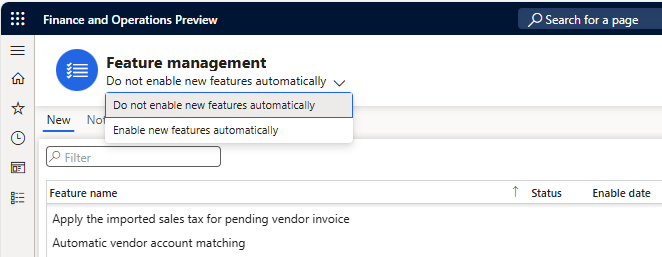
Unless working on a test environment for preview versions of FO and preview features, I recommend staying on Do not enable new features automatically.
Users can also check for updates by clicking the button in the header section on the right-hand side. This will add any feature that was added after the update to the list.
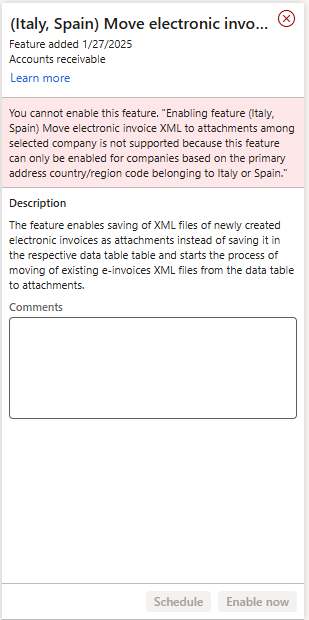
Usually, if a feature is in an optional state, users can enable it, unless there are certain restrictions, as shown in the example below.
Roles & Migration
Apart from System administrators, users who are assigned to the Feature manager role or the Feature viewer role can open the Feature management workspace.
Microsoft provided a Feature management data entity so users can migrate Feature management settings from one environment to another.
Can you add your own features to feature management?
The short answer is yes, but the long one is that it is not yet what you could fully utilise as an ISV. You can read in depth about this topic in this article Can you add your own features to feature management by André Arnaud de Calavon.
André is providing technical and functional know-how around the topic, and also pointing out some downsides for the use of Feature management to support ISV or partner solutions, so make sure to check out this article!
Conclusion
Feature management is a handy tool that enables users to try out new features, enable features that will help them achieve business scenarios, or disable features that are creating issues. Microsoft provides a short description through documentation, but the real results can only be achieved through enabling features and using them for appropriate business use-cases. As a good community member, it is always good to report any issue with any feature from the Feature management experience.